By using the INZONE Hub software, designed for computers running Windows 10 or later, you can save the Picture mode for each game or app so that when you launch the game, your preferred settings are automatically applied.
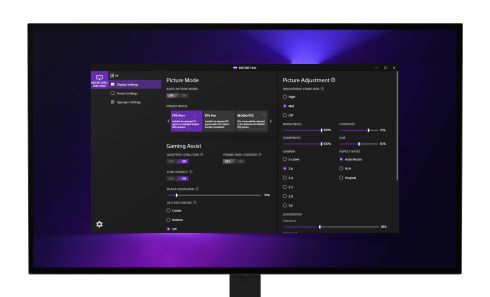
Download the latest version from the link below and install it on your computer.
INZONE Hub
The Display Settings menu on the left side of the screen lets you adjust more detailed parameters on your computer (e.g. GAMMA or SATURATION) than those available directly on the monitor.

Notes:
- When displayed simultaneously with the monitor's main settings screen, the settings display will not update in real time. However, changes made through the INZONE Hub app (settings software) or directly from the monitor are being applied correctly. Please either close and restart the INZONE Hub app, or hide and then re-display the monitor's settings screen.
- If the monitor is not recognized by the INZONE Hub app, and the monitor icon does not appear in the app, try the following steps:
- Make sure the DDC/CI setting is set to On.
- Open the Settings screen (OSD: On-Screen Display) by pressing the center of the joystick on the back of the monitor.
- Select Others.
- Select DDC/CI, and set it to On.
-
Try one of the following:
- Unplug and reconnect the HDMI or DP cable between your monitor and computer.
- Close INZONE Hub from the task tray in the bottom-right corner of the desktop, and then reopen it.
Note: To close INZONE Hub from the task tray, right-click the INZONE Hub icon in the task tray and select Exit.
- When connecting multiple monitors, changing the monitor's settings will cause its screen to flash to identify the monitor. This function only works when the image signal is SDR and will not flash when it is HDR.
You can back up your settings to a file (with the extension ".json") by clicking Export from Device Settings in the menu on the left of the screen. By sharing the file, you can apply the same settings to multiple computers.

By importing the files set for each player all at once, you can apply the same settings to your monitor.
1. Download the settings file
- Download the settings file (extension ".json") to any folder on your computer.
- Click the Download file button on the following page to download and unzip the compressed file (extension ".zip") to a folder of your choice.
INZONE M10S | Pro's Picture Settings
2. Import the settings file
- Click Import on the Device Settings screen.
- Import the configuration file (with the ".json" extension) downloaded in step 1.